


Download Zoogmo – Free Peer‑to‑Peer Backup Tool for Windows, macOS & Mobile
What Is Zoogmo and How Does It Work?
Zoogmo is a novel backup utility that turns your trusted friends’ computers into a shared, cloud‑like storage network. Instead of paying for traditional cloud services, Zoogmo lets you store encrypted copies of your most important files on the hard drives of people you already know. Think of it as a social backup platform: once you create an account, the app scans your system for files that are commonly backed up—documents, photos, project files, and more—then asks you to add “partners” from your existing contact list. Those partners become the nodes that receive encrypted fragments of your data, making the backup both distributed and free of any subscription fee.
The concept is both innovative and risky. On the upside, you gain a cost‑free, peer‑to‑peer backup solution that can be faster than uploading to remote servers because data travels directly between two computers over the Internet. On the downside, the security model relies heavily on trust; you must be comfortable letting a friend’s machine hold a copy of your data, even though it is encrypted end‑to‑end. If you have a circle of tech‑savvy friends who already use Zoogmo, the service can become a seamless extension of your personal backup strategy. If you’re the only one with the app, you’ll quickly discover that you need at least one partner before any backup job can start.
In practice, Zoogmo shines when you need to keep two of your own devices—say a home PC and a work laptop—in sync without relying on third‑party servers. The tool is easy to set up, offers automatic scheduling, and provides a clean interface that shows the status of each backup job in real time. Below we’ll explore the core features, walk through the installation process, and examine the pros and cons that determine whether Zoogmo is the right free backup solution for you.
Key Features that Set Zoogmo Apart
- Peer‑to‑Peer Backup Network – Files are stored on the computers of your chosen partners instead of a central data center.
- End‑to‑End Encryption – All data is encrypted locally before leaving your device; only you hold the decryption key.
- Automatic File Discovery – The app scans for commonly backed‑up file types and suggests them for inclusion.
- Cross‑Platform Support – Available for Windows, macOS, Android, and iOS, allowing you to protect data on virtually any device.
- Scheduled Backups – Set daily, weekly, or custom intervals; Zoogmo runs in the background without user intervention.
- Bandwidth Management – Throttle upload/download speeds to avoid saturating your Internet connection.
- Version History – Keep up to 10 previous versions of each file, making it easy to roll back changes.
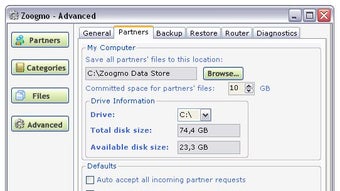
- Partner Management Dashboard – Invite, remove, or pause partners directly from the app’s UI.
- Free Service Model – No hidden fees; the only cost is the storage space contributed by your partners.
- Secure Delete – When you remove a file from Zoogmo, it is permanently erased from all partner devices.
Why Peer‑to‑Peer Beats Traditional Cloud (for Some Users)
Traditional cloud storage providers charge per gigabyte and store data in centralized data centers that can be targets for cyber‑attacks or government subpoenas. Zoogmo’s distributed model mitigates those risks by spreading encrypted fragments across multiple, geographically dispersed machines. Even if one partner’s computer is compromised, the attacker only obtains a small, meaningless piece of the whole backup. Moreover, because you control which friends act as storage nodes, you can ensure compliance with privacy regulations that require data to remain within certain jurisdictions.
The trade‑off is the need for an active network of partners. Without at least one reliable node, Zoogmo cannot create a backup, and the “free” nature of the service hinges on participants willingly offering spare disk space. For families, small teams, or hobbyist developer groups, this can be a perfect fit. For enterprises or users who demand guaranteed uptime, a conventional cloud provider might still be the safer bet.
Installation, Usage & Compatibility Guide
Step‑by‑Step Installation
- Visit the official Zoogmo website and click the “Download for Windows/macOS/Android/iOS” button that matches your device.
- Run the installer (Windows:
.exe, macOS:.dmg). Follow the on‑screen prompts to accept the license agreement and choose an installation folder. - After installation, launch Zoogmo and create a new account using your email address or a social‑login option.
- Verify your email (a verification link is sent automatically). Once verified, you will be taken to the main dashboard.
- The app will immediately scan your system for common file types. Review the suggested list and deselect any items you do not wish to back up.
- Invite partners by entering their Zoogmo‑registered email addresses or by sharing a unique invitation link.
- Set your backup schedule (e.g., “Every night at 2 AM”) and enable bandwidth throttling if needed.
- Click “Start Backup.” Zoogmo will encrypt the selected files and begin uploading them to your partners’ machines.
Operating System Support (Windows, macOS, Android, iOS)
Zoogmo is built on a cross‑platform framework, offering native clients for the major desktop and mobile operating systems. The Windows client supports Windows 10 and later, while the macOS version runs on macOS 10.14 (Mojave) and newer. Mobile apps are available for Android 6.0+ and iOS 13+. Each client respects the platform’s security model, using OS‑level encryption APIs to protect your keys.
Using Zoogmo After Installation
Once the initial backup finishes, the dashboard displays a visual map of all partner nodes, showing storage usage and the health of each connection. You can right‑click any partner to view detailed logs, pause syncing, or remove them entirely. The “Restore” tab lets you browse your backed‑up files, select specific versions, and download them directly to your device. If a partner goes offline, Zoogmo automatically retries the transfer and, if needed, re‑routes the data to another active node, ensuring continuity.
For power users, Zoogmo includes a command‑line interface (CLI) on Windows and macOS. The CLI lets you script backup jobs, integrate with cron or Task Scheduler, and generate detailed reports for audit purposes. Documentation for the CLI is bundled with the desktop client under the “Help → Developer Tools” menu.
Pros, Cons, Frequently Asked Questions & Final Verdict
Pros
- Completely free backup solution with no hidden subscription fees.
- End‑to‑end encryption ensures only you can read your data.
- Peer‑to‑peer architecture reduces reliance on third‑party data centers.
- Cross‑platform availability covers desktop and mobile devices.
- Automatic versioning and secure delete give you control over file history.
Cons
- Requires at least one trusted partner; not useful for solo users.
- Backup speed depends on partner’s internet connection and device availability.
- Limited storage capacity is tied to the amount of space friends allocate.
- No enterprise‑grade SLA or guaranteed uptime.
- Potential privacy concerns if a partner’s machine is compromised (though data remains encrypted).
FAQ – Answers from the Zoogmo Team
Is my data really secure on a friend’s computer?
Yes. Zoogmo encrypts every file locally with a 256‑bit AES key that never leaves your device. Only you hold the decryption password, so even if a partner’s computer is hacked, the attacker cannot read the stored data.
What happens if all my partners go offline?
Zoogmo will pause synchronization and display a warning. As soon as at least one partner reconnects, the pending backup jobs resume automatically.
Can I limit how much storage a partner contributes?
Yes. Each partner can set a maximum quota in their own Zoogmo settings. The system respects these limits and will not exceed the allocated space.
Does Zoogmo support incremental backups?
Absolutely. After the initial full backup, Zoogmo only transfers changed blocks, which saves bandwidth and speeds up subsequent syncs.
Is there a mobile app for restoring files on the go?
Yes. The Android and iOS apps let you browse, download, and restore any backed‑up file directly to your phone or tablet, with the same encryption safeguards as the desktop clients.
Final Verdict – Should You Download Zoogmo?
Zoogmo offers a fresh take on personal backup by leveraging the trust network you already have. For users who value privacy, want to avoid recurring cloud fees, and have at least one reliable partner, Zoogmo is a compelling choice. Its intuitive interface, strong encryption, and cross‑platform reach make it easy to adopt, while the peer‑to‑peer model provides a level of redundancy that traditional free cloud services can’t match.
However, the service is not a one‑size‑fits‑all solution. If you work alone, lack trusted contacts, or require guaranteed uptime with massive storage, you’ll likely need a conventional cloud provider. In those cases, Zoogmo can still serve as a supplemental backup for specific projects or for syncing files between two personal devices in different locations.
Ready to try a free, secure backup that runs on your friends’ machines? Click the button below to download Zoogmo for your platform and start protecting your data without spending a dime.
Overall Rating: 4 out of 5 stars